AI Connector setup: Claude Code to your first gather
✍️ Alice・愛麗沙
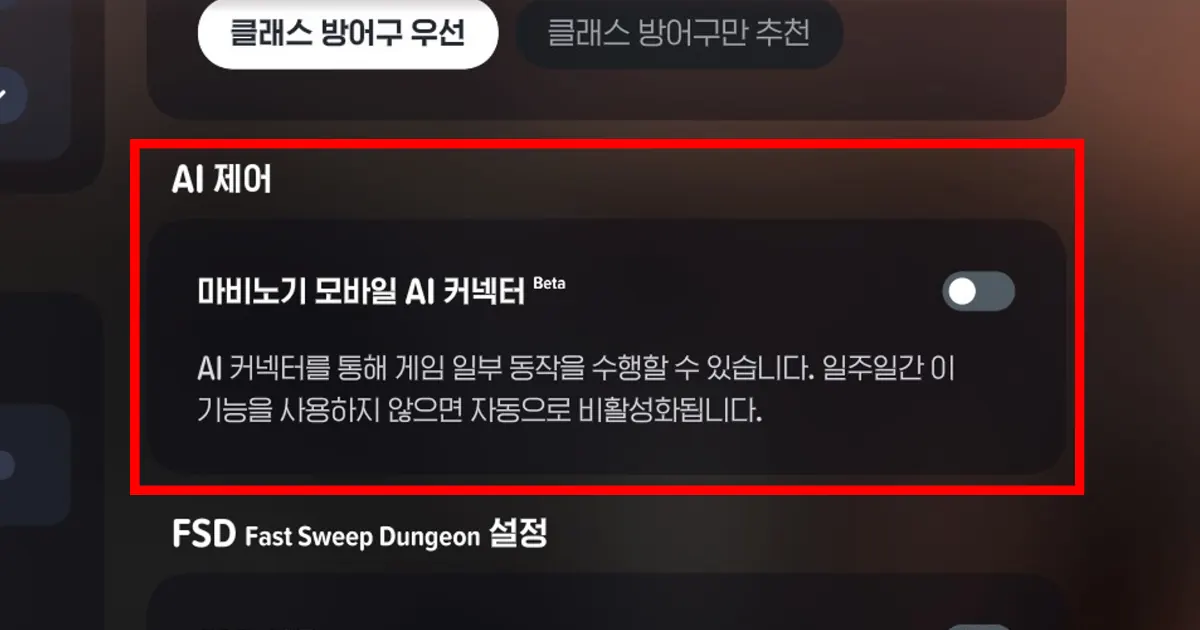
This is the hands-on companion to what Korea’s AI Connector is. It covers one setup with Claude Code, then the free Gemini CLI route and Cursor, with a picture for every step. Everything here applies to the Korean server’s PC client, the only place the connector exists.
It takes about ten minutes if you do it in the right order. Install your AI tool and log in to it first. Then enter the game with a character on the PC client and switch on Menu (≡) → Settings → Game → AI Control. The client looks for installed AI tools at the moment you flip the toggle, so switching it on with no tool installed does nothing. Then ask your tool “Is Mabinogi Mobile running and is the AI Connector connected?”. Ask one free question (daily missions, currencies, bag weight) before your first delegation. A delegation costs 5 Spirit Wings however much you ask for, and a gathering run tops out at 100 items. Don’t open your bag while a job runs: it stops the job and you lose the wings. Confirm the hourly popup to keep going. The toggle switches itself off after seven unused days. If you don’t want to pay for an AI tool, Gemini CLI is the one Nexon’s own guide walks through.
What you need
| Item | Notes |
|---|---|
| PC client | The Windows PC version of Korea’s Mabinogi Mobile. Not the phone app: Korea says mobile is technically hard for now. |
| One AI tool | Official list: Claude Code, Cursor, Gemini CLI / Antigravity, Windsurf, Cline / Roo Code, Kiro, OpenCode |
| An account for it | Claude Code: a Claude subscription (Pro or Max) or an Anthropic Console account (API, pay per use). Gemini CLI: a Google account |
| Spirit Wings | 5 per delegation, 0 per question |
You pay the AI provider, outside the game. Nexon neither charges for it nor covers it, and it’s separate from wings, per Korea’s guide. Minors may need a guardian’s consent.
Claude Code, seven steps
Step 1 | Install Claude Code
Open Windows PowerShell from the Start menu, paste the one-line installer from Anthropic’s documentation and press Enter. When it finishes, close the window, open a new one, and check that claude --version prints a version number.
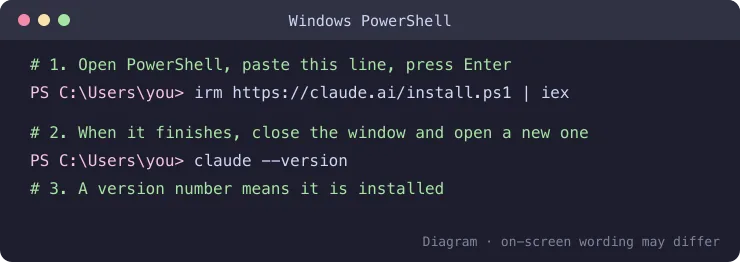
- If the installer says it needs Git for Windows, install that first. The community Claude Code kit for the connector lists it as a prerequisite too.
- If Windows can’t find
claude, it’s a PATH problem. See the troubleshooting table below.
Step 2 | First run and login
Type claude in PowerShell. The first run asks how you want to log in and opens a browser.
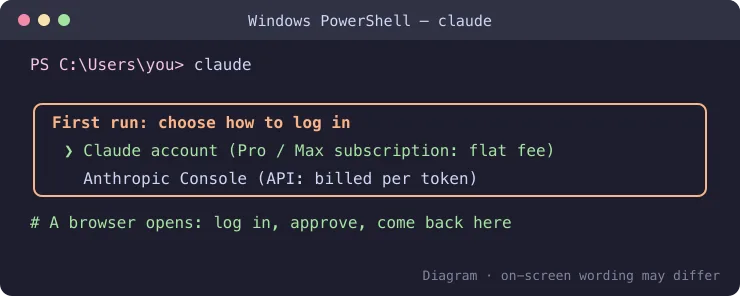
This choice sets how you’re billed. A subscription has usage limits inside a flat fee, and long gathering sessions use them up. A Console (API) account bills every token. Korea’s notice says repeated long jobs like gathering and crafting use more, because more information goes back and forth. If you’re new to this, a subscription means no surprise bill.
Step 3 | In game: Menu (≡) → Settings → Game → AI Control
Start the PC client and log all the way in with a character. The connector ignores every request on the login and character-select screens. Switch on the toggle under “AI 제어” (AI Control), in the right-hand column of the Game tab.
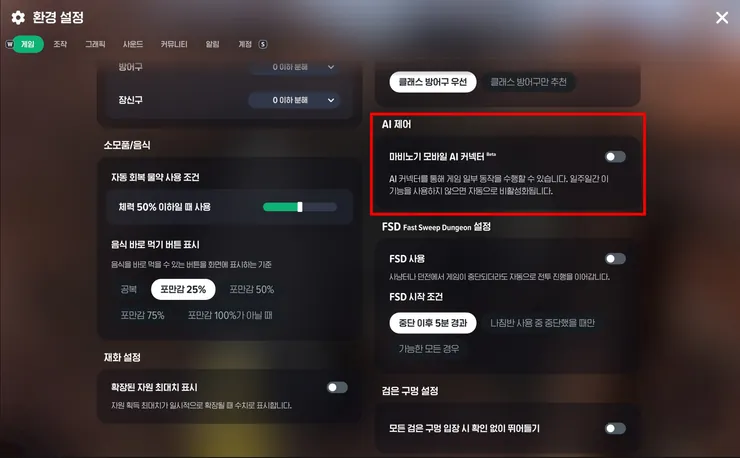
Why the AI tool goes first: Korea’s notice says the client finds installed AI tools and registers itself with them when you flip the toggle. If you switched it on first and installed the tool later, switch the toggle off and on again. That’s our reading of the notice, not a documented step, but it costs nothing to try.
Step 4 | The popup: tick the box, then Activate
A confirmation popup appears. “활성화” (Activate) only works once you tick “내용을 모두 확인했습니다” (I have read everything).
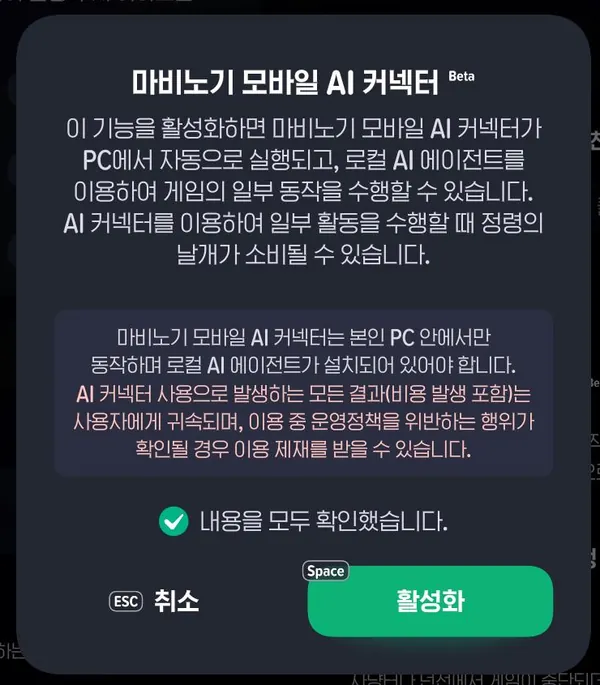
The two red lines are the whole rulebook. Results and costs are yours, and breaking the operation policy gets you sanctioned. Section 11 of the policy, added on 17 September, says the same.
Step 5 | Check the link, then ask something free
Back in PowerShell, ask Claude Code the official first question. Once it confirms, ask one question that costs no wings, so you know it’s really reading your game.
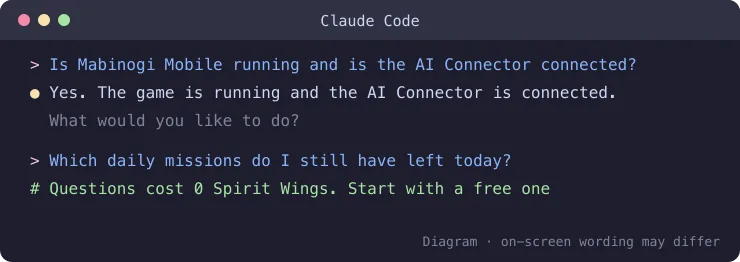
You can talk to the tool in English. The game’s names are Korean, though. In the first-day review on DC’s AI gallery, the first request failed and a more specific one connected. If yours doesn’t connect, ask again and name both “Mabinogi Mobile” and “AI Connector”.
Step 6 | Your first delegation, with a wing check
Now ask for real work. Take Korea’s example “gather 20 iron ore” and add “ask me before you spend wings”. Korea’s guide says the AI tool may confirm before a wing-spending action. When Claude Code asks permission to run a command, check that it’s MabinogiMobile_CLI.exe in the game folder, then allow it. The file name comes from community reports.
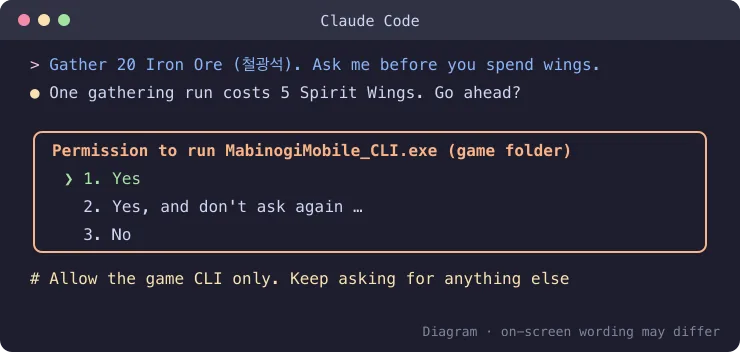
- Use “don’t ask again” for the game CLI only. A setting that auto-approves every command will also run commands that have nothing to do with the game.
- Item names: if English fails, ask “list what I can gather here” and reuse the exact Korean name it returns, or paste the Korean yourself (철광석 is iron ore).
- Don’t touch the game while a job runs. A Ruliweb user opened their bag mid-gather, the job stopped, and the 5 wings were gone.
Step 7 | Chat needs your approval and carries an AI icon
When you have the agent write a chat line, it shows you the text first and sends nothing until you approve. Since 15 October the game adds its own confirmation popup as well. Sent lines show this icon beside your character’s name.


Spam and abusive messages are sanctioned under the operation policy even when an AI wrote them. Private 1:1 messages can’t be sent at all.
Two things after that
- The hourly popup. After an hour of continuous use, a popup appears in the game, and requests wait until you click it. The 15 October patch fixed it “sometimes not appearing”, so leaving your desk now reliably stops the session.
- Seven-day auto-off. Unused for seven days, the toggle switches itself off. Coming back after a break, start again from step 3.
Prompts that work, and what they cost
There’s no command syntax: you talk to it. These are Korea’s official examples plus ones the community reports working.
| You want to | Say | Wings |
|---|---|---|
| Check the link | Is Mabinogi Mobile running and is the AI Connector connected? | 0 |
| Check chores | Which daily missions are left? / Show my weekly mission progress | 0 |
| Check the bag | What percentage of my bag weight am I at? | 0 |
| Gather | Gather 20 iron ore (철광석) / Get me 100 wool (양털) | 5 |
| Fill a recipe | Gather what I need to make tar, show me the plan first | 5 per step |
| Collect processing | Collect my finished processing | 0 (community report) |
| Music | Play a score I own on my instrument (owned scores only; composed scores blocked since 15 Oct) | 5 |
Give it house rules in your first message. They save wings:
Help me through the Mabinogi Mobile AI Connector. Rules: 1) Before anything that spends Spirit Wings, tell me the cost and wait for my yes. 2) Delegate gathering in runs of 100. 3) If my bag is over 80% weight, stop and tell me. 4) If a request fails, don’t resend it; show me why. 5) Don’t attempt anything outside the connector’s scope.
The arithmetic: wings and tokens
| Item | How | Result |
|---|---|---|
| One delegated activity (official) | — | 5 Spirit Wings |
| Delegations one character's daily wing income covers | 339 ÷ 5 (daily income is a community count) | 67 |
| The same wings spent on dungeon auto-retry | 339 ÷ 3 | 113 |
| Yield of one gathering run (100 wool asked, 102 received) | 102 ÷ 5 | 20.4 per wing |
| Fast gathering back to back for 1 hour (100 in about 1 min 40 s) | 3,600 ÷ 100 × 5 | 180 |
| Slow gathering for 1 hour (a run ends about every 10 min) | 60 ÷ 10 × 5 | 30 |
| Hours of fast gathering one day's income buys | 339 ÷ 180 | 1.9 h |
5 wings per delegation and 3 per auto-retry are official. The 339 daily income, the 100-item timing and the 'ends about every 10 minutes' are player measurements and vary by material. Questions (missions, currencies, bag weight) cost nothing.
Two rows matter:
- Fast materials eat the most wings. Something that fills 100 in under two minutes costs about 180 wings for an hour of back-to-back runs. That’s more than half the ~339 a character earns in a day (a community count). A slow gather that runs ten minutes costs 30 an hour. The connector earns its wings on slow, far-away gathering.
- Manual gathering has defaulted to 100 since 17 September too. Press Find Nearby yourself and you get the same 100 with no wings. What the connector buys is the clicking and the walking. It doesn’t buy time away from the screen: the hourly popup sees to that.
We can’t give you a token figure. Prices and limits differ by tool and plan, and Korea publishes no number. Three things you can do:
- On a Console (API) account, Claude Code’s
/costshows what the session has cost. - On a subscription, check your usage page after the first hour.
- Use
/modelto drop routine work (chores, gathering) to a lighter model. The community kit calls model choice “the biggest saving”.
Gemini CLI: the free route
Gemini CLI is the only tool Korea’s guide walks through step by step. A Google account is all you need.
- Install Node.js: nodejs.org → Get Node.js → run the .msi → Next and accept the terms → Install → Finish.
- Open Command Prompt: Windows key →
cmd→ Command Prompt. - Install: paste
npm install -g @google/gemini-cliand press Enter. It’s done when the prompt comes back. - Run and log in:
gemini→ arrow keys to Sign in with Google → log in and approve in the browser → when you see “Success”, go back to the window.
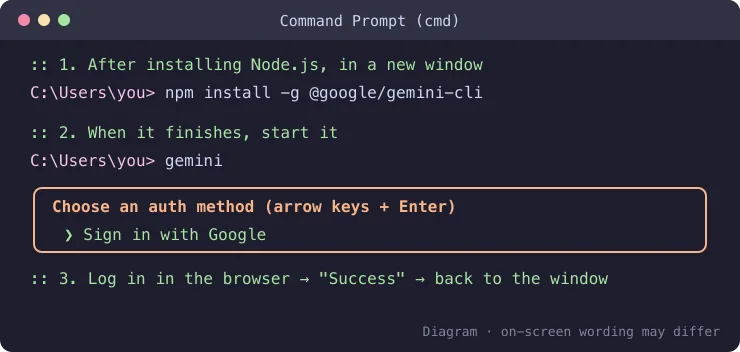
From there it’s the same as Claude Code. Do step 3 (the toggle), then ask in the gemini window whether the connector is connected. Korea’s guide lists three errors:
| Symptom | Fix (Korea’s guide) |
|---|---|
| ‘npm’ is not recognized as an internal or external command | Close Command Prompt and open it again |
| Permission error (EACCES / EPERM) | Right-click Command Prompt → Run as administrator |
| gemini won’t start | Restart the PC once after installing Node.js, then type gemini again |
A 65-upvote post on the Evan gallery on 18 September was from someone who followed these steps and got stuck at Google’s end. If login is where it breaks, the problem is your Google account, not the game. Korea’s guide sends those cases to Google support.
Antigravity (Google’s editor-style tool) installs its connector skills automatically when you flip the toggle, according to community reports. If the approval prompts get tiresome, still don’t switch on “auto-run every terminal command”: it would also run commands that have nothing to do with the game.
Cursor: if you already use it
If you already use Cursor, there’s little extra to do. Install it and log in, do step 3 (the toggle), then ask the same connection question in Cursor’s agent chat. When it asks to run a command, allow the game CLI only, as with Claude Code. Cursor runs on its own editor subscription. If you don’t use it already, the connector alone isn’t a reason to sign up.
What it won’t do: seven official limits, plus what players hit
Korea’s official exclusions: exchange listing and buying, growth-related auto-play, payments and the cash shop, guild management (kicks, ranks), 1:1 messages, discarding or disassembling items, external messenger or social links.
Found in use (community):
- Moving you to another town is refused. A first-day review found that wording it as “gather in town X” was blocked too. The game picks the gathering spot.
- Claiming mission rewards, NPC shops and dialogue choices don’t work. Open the reward boxes yourself.
- Dungeons, hunting grounds and the abyss are out of scope. Repeat dungeons are what auto-retry is for (3 wings a run). See the 15 October update for the latest connector changes.
Troubleshooting
| Symptom | Cause | Fix |
|---|---|---|
| “Not connected” | Not in game yet, toggle off after 7 days, or tool installed after the toggle | Enter with a character → toggle off and on → reopen the AI tool’s window |
claude not found | Install folder not on PATH | Add %USERPROFILE%\.local\bin to PATH and restart the terminal (Anthropic docs) |
| Material name returns not_found | Name doesn’t match the game’s list | Ask “list what I can gather now” and reuse the exact name |
| Overweight right at the start | Bag nearly full | Clear the bag yourself. The community kit refuses to delegate above 95% |
| Gathering stops, wings gone | You opened the bag or moved during the job | Hands off while it runs |
| Silent after about an hour | Hourly popup waiting | Click the popup in the game |
| “Not enough wings” | Delegation doesn’t run without wings (official) | Top up with daily missions. Questions still work |
| Request refused | Outside the scope above | Do it by hand |
| The tool itself errors | AI-tool problem | Korea’s guide: contact that tool’s provider |
Don’t: outside programs that wrap the connector
GitHub has unofficial desktop consoles, auto-repeat loops and schedulers that call the game folder’s CLI directly. Nexon’s design connects your AI tool to the game. Policy [11-2] lists altering the feature in ways the company does not allow as grounds for restriction. And a loop that runs with nobody there is exactly the idle play the hourly popup exists to stop. We don’t recommend any of them. Screen-reading, clicking macros are a separate matter entirely: [4-4] unauthorised programs, permanent on the first offence.
What would change this page: Nexon changing the scope or the 5-wing price, adding tools, or shipping a mobile version. Korea’s guide says the scope “may be added to or changed with updates”, and the connector is still a Beta.