Desktop companion
When you play on PC, keep the field bosses, wards, abyss hole, resets and today's dailies in a small window beside the game. Click anything to open the full page in your browser. Three ways to use it: a browser window that needs no download, a desktop app that can stay on top and go translucent, and a browser extension that just rings on time.
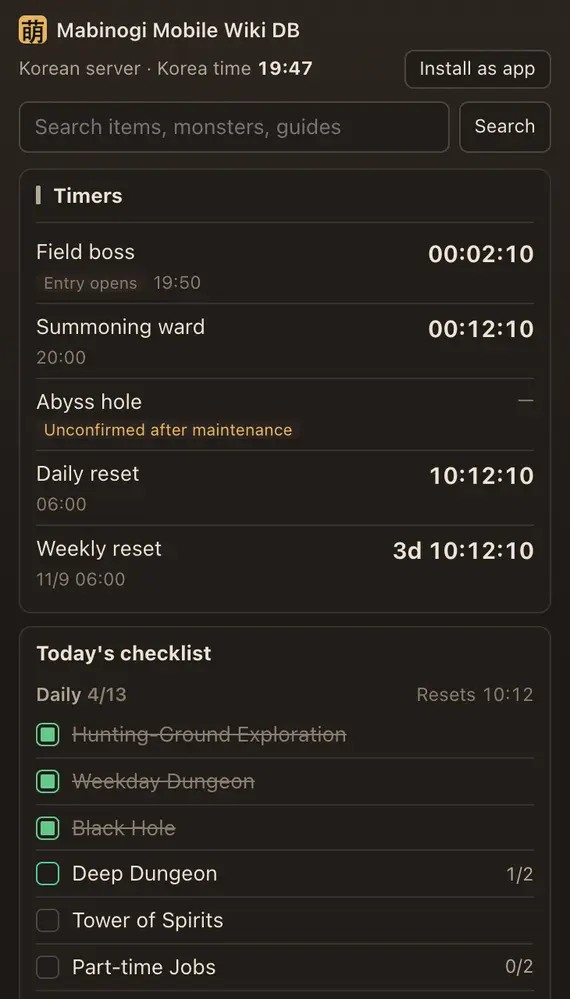
No download: the browser window
In desktop Chrome or Edge, press the button below and a small window opens that stays above everything else. Put it beside the game. Closing the original tab closes it too.
- Staying on top needs Chrome or Edge 116 or later (their picture-in-picture window). Safari and other browsers open an ordinary small window that the game will cover.
- "Install as app" on the companion page gives it its own window and shortcut, but it will not stay on top.
- Ticks on the checklist share one record with the Tracker page and stay in this browser only.
Desktop app (Windows, macOS, Linux)
The same companion page in a window of its own, plus:
- An always-on-top switch; size and position are remembered
- An opacity slider (40%–100%)
- Click-through: when on, clicks pass through the window to the game underneath
- Hotkeys: Ctrl+Shift+M shows or hides it, Ctrl+Shift+L turns click-through off (Cmd on a Mac)
- A tray icon: closing the window tucks it into the tray; bring it back or quit from there
- Desktop notifications for field bosses, the abyss hole, resets and expiring rewards, a few minutes ahead — each kind can be turned off
- Automatic updates on Windows and macOS (signed with our key); on Linux, reinstall from this page
Browser extension (Chrome, Edge, Brave, Opera)
If you would rather not install a program: the extension does one thing — it shows a system notification on time, on your chosen server's schedule, and a click opens the matching page. It has no window and does not stay on top.
Downloads
| Platform | File | Size | SHA-256 |
|---|---|---|---|
| Windows 10/11 | Installer (.exe, recommended) MabiCompanion-windows-x64-setup.exe | 2.0 MB | 5d8f735aebcf3469fd4c66388245119828b3f24b9dc32c0c83a8a1cfdbbd84eb |
| Windows 10/11 | MSI installer MabiCompanion-windows-x64.msi | 2.8 MB | a3343ad33c585075f1bbf1b20840e8e3d08f4d3f55dd3d923f9a845e6ca0937a |
| macOS 10.15 or later (Intel and Apple silicon) | Disk image (.dmg) MabiCompanion-macos-universal.dmg | 6.3 MB | ea8de8799f8bb4914f117eebbe62b7f3379c734149908cca38f88b0a3b3faf05 |
| Linux (Debian/Ubuntu 22.04 or later, x86_64) | Debian package (.deb) MabiCompanion-linux-amd64.deb | 3.6 MB | 083bfb37edb33aaf24fb90d8be4bcb5167d73e8955f2ff2ebee78a9e5f5997ea |
| Chrome / Edge / Brave / Opera | Extension (.zip) mabi-alerts-extension-0.1.0.zip | 34 KB | 497aba5dfcf5ae9030cf9a8ca324a3381cf0bbe824213a77cd7ed54fcf2f27e0 |
Desktop app (Windows, macOS, Linux) · Version 0.1.0 · Browser extension (Chrome, Edge, Brave, Opera) · Version 0.1.0
How to install
Every step has a picture. Because the files are not paid-signed, your system blocks them once the first time — that is expected, and the steps get you past it.
Windows
-
Download "Installer (.exe)" from the table above and open it when it finishes.
-
When the blue "Windows protected your PC" screen appears, click the text link "More info" first.
-
A "Run anyway" button appears at the bottom. Click it.
-
Follow the installer. It installs for your user only and does not need administrator rights.
-
On first launch, pick your server and language and the window appears. Next time, open it from the Start menu or the tray.
On a fresh Windows 11 install with Smart App Control on, unsigned apps are blocked with no "Run anyway" button. Turning it off is under Windows Security → App & browser control → Smart App Control, but it lowers your protection — we don't recommend doing that just for this. Use the browser window or the extension instead.
macOS
-
Download "Disk image (.dmg)", open it and drag Mabi Companion into the Applications folder.
-
Open it from Applications. The first time, macOS says it cannot be opened because the developer cannot be verified. Click "Done" or "Cancel".
-
Open System Settings → Privacy & Security, scroll down to Security, click "Open Anyway" next to "Mabi Companion was blocked" and enter your password.
-
On macOS 14 or earlier you can instead right-click (Control-click) the app → Open, then Open again.
-
When macOS asks about notifications, choose "Allow" so the alerts can appear.
Linux
-
Download "Debian package (.deb)".
-
Install it with this one line in a terminal (it also pulls in the WebKitGTK and tray libraries it needs). On some desktops you can double-click the .deb and install it from the software centre instead.
-
Open Mabi Companion from your applications menu. It works on desktops without a tray too (window, hotkeys and Settings all there); translucency needs a compositing window manager.
The Linux version does not update itself: when a new version comes out, download the new .deb from this page and install it with the same command.
Browser extension (Chrome, Edge, Brave, Opera)
-
Download the extension .zip from the table above.
-
Unzip it into a folder and keep that folder somewhere you won't delete (Documents, say). The browser loads it from there every time it starts.
-
Type chrome://extensions into the address bar (edge://extensions in Edge, brave://extensions in Brave, opera://extensions in Opera) and press Enter.
-
Turn on "Developer mode" (top right in Chrome, on the left in Edge).
-
Click "Load unpacked".
-
Choose the unzipped folder itself — the one that shows the extension's files directly when opened, not a folder with another folder inside — and click "Select Folder".
-
"Mabi Companion Alerts" appears in the list. Pin it to the toolbar from the puzzle-piece menu, then click it to pick your server and which alerts you want.
- macOS: in System Settings → Notifications, allow notifications for your browser (Chrome, Edge…), or the alerts will not appear.
- It does not ring while the browser is fully closed. If you want alerts without a browser open, use the desktop app.
After a browser update
- Usually nothing to do — the extension stays.
- If it shows as off or with an error, open the extensions page and switch it back on, or press the reload ↻ on its card.
- Don't move or delete the folder. If it is gone, load it again with the steps above.
- Some browsers show a notice about developer-mode extensions when they start. That is normal — close it. Choosing "Disable" stops the alerts.
- When a new version comes out: unzip the new .zip over the same folder, then press reload ↻ on the card. The extension does not update itself.
How to remove it
- On chrome://extensions (or edge://, brave://), click "Remove" on the "Mabi Companion Alerts" card.
- Then delete the unzipped folder. Its settings live only in the browser and go with it.
Is this safe? Why the warning?
Why you see a warning
Windows and macOS warn about an "unknown publisher" or say the developer "cannot be verified" because we have not paid Microsoft or Apple for a publisher certificate (about US$150–300 a year) — not because anything is wrong with the file. This is a free fan tool, so we chose not to.
The extension needs Developer mode for the same reason: it is not in a store, so you load it from a folder yourself.
No signature also means no third party vouches for it. Everything it does and does not do is listed below; if you would rather not, the browser window needs no download at all.
What it does
- Desktop app: shows our site's companion page (timers, dailies, events, guides) in its own window, and opens links in your usual browser.
- Desktop app: reads our public timer data (the same file the site's alert bell uses), works out the times on your computer and shows system notifications.
- Desktop app: checks our download server for a new version now and then.
Browser extension (Chrome, Edge, Brave, Opera)
- Downloads the public schedule from our site every 30 minutes (and when you open the popup, if it is older than that).
- Rings on this computer's clock for field bosses, the abyss hole, the summoning ward, black-hole re-rolls, daily and weekly resets, maintenance, new content and last calls before something ends; once a day for what ends in the next 24 hours, daily missions and what is new on the site. Everything starts on; each item can be turned off.
- Clicking a notification opens the related page of our site in a new tab.
- Server: Taiwan, Japan or Korea. Language follows the browser.
- Your settings stay in this browser profile.
What it never does
- It never reads, changes or watches the game: no memory reading, network packets, game files, logs, screenshots or screen reading.
- It never sends keys or mouse input to the game — no macros, no auto-clicking.
- It injects into and hooks nothing, and bundles no VPN or booster.
- It never asks for a game account, password or any login.
- It does not track you: apart from the site's own analytics on the pages the window shows, neither the app nor the extension sends anything about you.
Browser extension (Chrome, Edge, Brave, Opera)
- Never reads or changes any page you visit, our own included: no tabs, history or "all sites" permission.
- Sends nothing about you: the downloads carry no cookies, account, ID or settings — an ordinary request, like opening a page.
- No analytics, ads or tracking.
- Never downloads or runs outside code: all of its code is in the zip, and the only downloads are schedule data.
- Never touches the game: it does not read the game's memory, files or network traffic, press keys or click for you, or read your screen.
- Does not ring while the browser is fully closed. An alert missed by more than 5 minutes (computer asleep) is skipped; the once-a-day list still arrives up to 12 hours late.
- Does not update itself: download the new version from our site.
- Settings do not sync between devices.
They are separate windows and alerts, the same as opening a browser beside the game. The operation policy bans programs that affect or alter how the game runs; these tools do not touch the game. We cannot speak for the publisher, though — if in doubt, use the browser window.
Permissions it asks for
Desktop app (Windows, macOS, Linux)
- Notifications: to show the alerts (macOS asks the first time).
- Network: the app itself connects only to our site (the companion page, the timer data) and our download server (update checks). The site inside the window loads the site's analytics, exactly as it does in a browser.
- System hotkeys: just Ctrl+Shift+M and Ctrl+Shift+L, used to show/hide the window and turn click-through off. No other keys are read.
- No administrator rights: the .exe installer installs for your user only (the MSI may ask, depending on your system).
Browser extension (Chrome, Edge, Brave, Opera)
The extension lists these permissions when you load it (read from its own manifest):
alarms— Wakes the extension every minute and at the exact minute of the next alert, and refreshes the schedule every 30 minutes.notifications— Shows the alerts as system notifications.storage— Keeps your choices and the downloaded schedule in this browser profile.https://mabinogimobile.nipponhashi.com/*— Only to download the public schedule, the daily "new on the site" list and Taiwan's abyss-hole time from our site. Nothing runs on the site's pages.
Updates are signed
Every automatic update file for the desktop app (Windows and macOS) is signed with our own key, and the app carries the matching public key. A file whose signature does not match is not installed, so nobody can slip you a fake update. The Linux version does not auto-update, so get new versions from this page only.
Download only from this page
We can only vouch for files downloaded from this page (mabinogimobile.nipponhashi.com). Don't use copies passed around on other sites, forums or chats.
Check a file yourself
Compute the SHA-256 of what you downloaded and compare it with the value in the table above — every character must match:
- Windows (PowerShell)
Get-FileHash .\MabiCompanion-windows-x64-setup.exe -Algorithm SHA256- macOS (Terminal)
shasum -a 256 MabiCompanion-macos-universal.dmg- Linux
sha256sum MabiCompanion-linux-amd64.deb
Privacy
- Your settings (language, on top, opacity, alerts) stay on your computer or in your browser. No account, nothing uploaded.
- What the desktop window shows is our website, exactly as in a browser, so the site's analytics and privacy policy apply.
- Checklist ticks are kept in the window's own storage and never leave your computer.
Questions
I can't see the window when the game is full screen
No on-top window — Discord's overlay included — can draw over a game in exclusive full screen. Switch the game to windowed or borderless if it offers that, or put the companion on a second monitor.
I turned on click-through and now I can't click the window
Press Ctrl+Shift+L (Cmd+Shift+L on a Mac), or untick it in the tray menu.
The hotkeys clash with the game
They are system hotkeys and only switch the companion. If another program already holds one, the settings window says so, and the tray menu still works.
How do I uninstall the desktop app?
Windows: Settings → Apps → Mabi Companion → Uninstall. macOS: drag the app to the Trash. Linux: remove it in your software centre, or run sudo apt remove mabi-companion.